
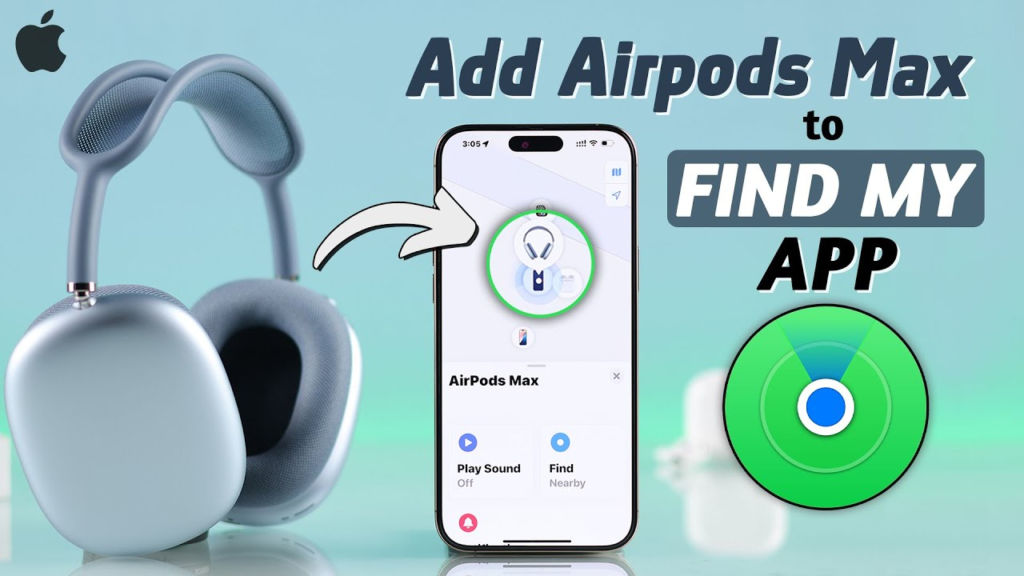
You finally treated yourself to the AirPods Max. You’ve unboxed the premium mesh case, admired the anodized aluminum cups, and now you’re ready to dive into that immersive spatial audio. But how do you actually get them to talk to your devices?
While Apple makes the ecosystem feel like “magic,” learning how to pair AirPods Max can be slightly different depending on whether you’re using an iPhone, an Android, or even a Windows PC. The process is seamless, but if you don’t see that setup animation, it can quickly become frustrating.
In this guide, I will walk you through the foolproof steps to connect your headphones to any device and show you how to troubleshoot the most common pairing “hiccups.”
Key Takeaways
- Apple Ecosystem: Use the one-tap setup by bringing your headphones close to an unlocked iPhone or iPad.
- The Noise Control Button: This is the “secret key” for pairing with non-Apple devices.
- Automatic Switching: Once paired to one Apple device, they are automatically paired to all devices on your iCloud account.
- Pairing Mode: If the status light isn’t flashing white, your AirPods Max aren’t in pairing mode.
- Smart Case: Keep your AirPods Max in the Smart Case when not in use to preserve battery and reset the connection.
1. How to Pair AirPods Max with iPhone or iPad
If you are using an iOS device, Apple has made the process incredibly fast. Ensure your Bluetooth is turned on before you begin.
- Remove from Case: Take your AirPods Max out of the Smart Case.
- Hold Near Device: Hold your headphones next to your unlocked iPhone or iPad.
- The Animation: A setup animation should appear on your screen automatically.
- Tap Connect: Follow the on-screen prompts. If you have Siri or Spatial Audio set up, it will ask if you’d like to customize those settings now.
- Done: Your AirPods Max are now linked to your Apple ID.
Read Also: How to Set Up AirTag
2. How to Pair AirPods Max with Android or Windows
Yes, you can use AirPods Max with non-Apple products! While you’ll lose features like automatic ear detection and Spatial Audio, the sound quality remains top-tier.
- Open Bluetooth Settings: On your Android phone or Windows PC, go to the Bluetooth menu and ensure it’s searching for new devices.
- Enter Pairing Mode: Press and hold the Noise Control button (the long button next to the Digital Crown) on the right ear cup.
- Watch the Light: Continue holding until the status light on the bottom of the right ear cup flashes white.
- Select on Device: Look for “AirPods Max” in your list of available devices and tap to pair.
AirPods Max Compatibility & Features
| Device Type | Connection Method | Key Features Supported |
| iPhone/iPad | Proximity / One-Tap | Spatial Audio, Auto-Switching, “Find My” |
| Mac/Apple TV | iCloud / Bluetooth | High-Fidelity Audio, Noise Cancellation |
| Android | Manual Bluetooth | Noise Cancellation, Transparency Mode |
| Windows PC | Manual Bluetooth | Standard Audio, Mic Support |
3. Pairing with a Mac
If your Mac is signed into the same iCloud account as your iPhone, your AirPods Max might already be there!
- Check the Menu: Click the Control Center icon in the top right of your Mac menu bar, then click Bluetooth.
- Manual Connection: If they don’t appear, follow the “Android/Windows” steps above to put them in pairing mode, then select them from the Bluetooth list.
4. Troubleshooting: Why Won’t My AirPods Max Pair?
Sometimes the “magic” fails. If you’re struggling with how to pair AirPods Max, try these three rapid-fire fixes:
Check the Battery
If your AirPods Max are completely dead, they won’t enter pairing mode. Charge them for at least 5 minutes using a Lightning or USB-C cable (depending on your model) and try again.
Reset the Headphones
This fixes 99% of pairing issues. Hold both the Digital Crown and the Noise Control button simultaneously for about 15 seconds. Wait for the status light to flash amber, then white. This “Factory Reset” clears the memory and prepares them for a fresh connection.
Clean the Sensors
AirPods Max use optical sensors to know when they are on your head. If these sensors are dirty, the headphones might think they aren’t being “worn” or “held,” which can sometimes interfere with the setup animation. Use a dry, lint-free cloth to wipe the inside of the ear cups.
Conclusion
Learning how to pair AirPods Max is the final hurdle before you enjoy some of the best noise-canceling technology on the market. Whether you’re staying within the Apple garden or branching out to Android and Windows, the process is straightforward once you know how to trigger that flashing white light.
Would you like me to show you how to customize the Digital Crown settings so you can change the volume direction or noise-canceling toggles?
FAQ Section
Q: Can I pair AirPods Max to two devices at once?
A: If you are in the Apple ecosystem, yes—it’s called Automatic Switching. They will automatically move from your iPad to your iPhone if you receive a call. On non-Apple devices, you can only be actively connected to one device at a time.
Q: Does the Smart Case have a pairing button?
A: No. Unlike the standard AirPods or AirPods Pro, the pairing button is located directly on the right ear cup of the AirPods Max themselves.
Q: Why do my AirPods Max keep disconnecting?
A: This is often caused by a firmware glitch or interference from other Bluetooth devices. Try a Hard Reset (holding both buttons for 15 seconds) to stabilize the connection.
Q: Do I need an app to pair them on Android?
A: You don’t need an app to pair them, but third-party apps like “Assistant Trigger” can help you see battery levels and use Google Assistant on your Android device while wearing your AirPods Max.