
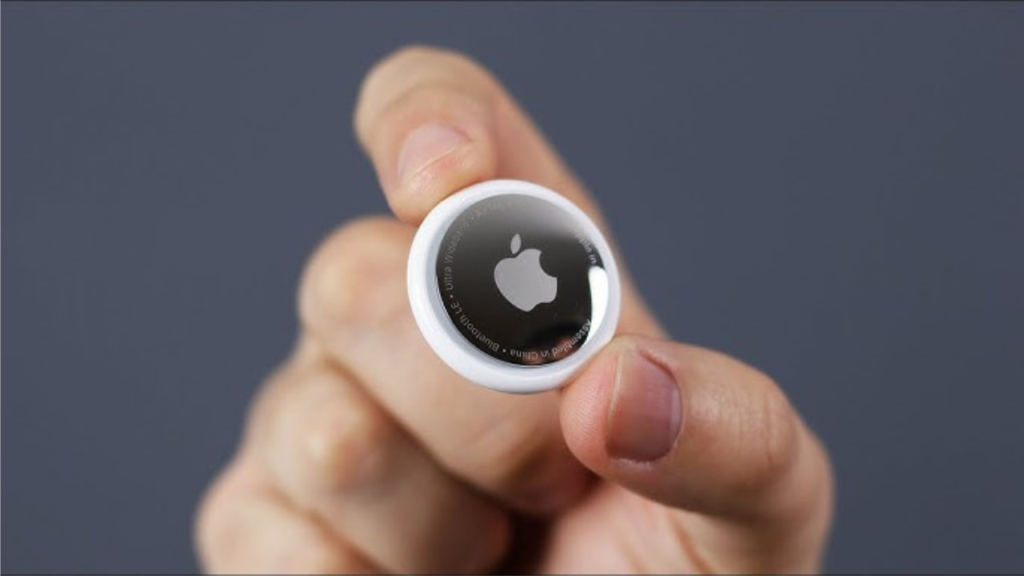
We’ve all been there—standing by the door, frantically patting our pockets, and realizing our keys have vanished into thin air. If you’ve just unboxed a new Apple AirTag, you’re about to end that stress forever. Apple has designed the setup process to be nearly “magical,” but there are a few technical prerequisites you need to get right to ensure your tracking works flawlessly.
In 2026, AirTags remain the gold standard for finding lost items like wallets, backpacks, and luggage. Whether you’re setting up your first tag or adding to a 4-pack, I’ll show you exactly how to set up an AirTag in under 60 seconds.
Key Takeaways
- Compatibility Check: Ensure your iPhone or iPad is running iOS 14.5 or later (iOS 19 is the 2026 standard).
- Instant Pairing: Simply removing the plastic tab and holding the AirTag near your iPhone triggers the setup.
- Apple ID Sync: Your AirTag automatically links to your Apple Account and appears in the Find My app.
- Precision Finding: If you have an iPhone 11 or newer, you can use Ultra Wideband tech to find your tag with pinpoint accuracy.
- Troubleshooting: If the animation doesn’t appear, a quick Bluetooth toggle or device restart usually fixes it.
1. Prerequisites: Before You Start
Before you can learn how to set up an AirTag, you need to make sure your Apple environment is ready. Apple requires a few security features to be active to prevent unauthorized tracking.
- Two-Factor Authentication: Your Apple Account must have 2FA enabled.
- Find My App: Ensure “Find My” is turned on in your iCloud settings.
- Bluetooth & Wi-Fi: Both must be active, along with a stable internet connection.
- Location Services: Go to Settings > Privacy & Security > Location Services and make sure it is On.
Read Also: How to Negotiate Car Price
2. Step-by-Step: How to Set Up AirTag
Follow these steps to get your tracking live. It’s a seamless process that relies on proximity.
- Unwrap and Activate: Remove the plastic wrap and pull the battery tab. You will hear a satisfying “chirp” or chime, indicating the AirTag is powered on.
- The Proximity Pop-up: Hold the AirTag within a few inches of your unlocked iPhone. A setup animation should slide up from the bottom of your screen.
- Tap Connect: Click the “Connect” button on your screen.
- Name Your Item: Select a name from the list (like “Keys” or “Luggage”) or choose Custom Name to add your own text and a fun emoji.
- Register with Apple ID: Tap “Agree” to link the AirTag to your Apple Account. This ensures only you can track this specific tag.
- Done: Your AirTag is now live! You can view it under the Items tab in the Find My app.
AirTag Setup Troubleshooting
| Problem | Likely Cause | Solution |
| No Animation | Bluetooth is off or locked. | Toggle Bluetooth Off/On; ensure phone is unlocked. |
| “More than one detected” | Multiple tags nearby. | Move other AirTags at least 10 feet away during setup. |
| Setup Error | Low battery or old iOS. | Check for iOS updates or replace the CR2032 battery. |
| Already Linked | Tag belongs to someone else. | The original owner must remove it from their Find My app. |
3. Mastering the “Find My” App
Once the setup is complete, you should familiarize yourself with the tools at your disposal within the Find My app.
Play Sound
If you know your keys are in the house but can’t see them, tap Play Sound. The AirTag will emit a series of beeps to lead you to its hiding spot.
Precision Finding
On compatible iPhones (11 through 17/18/Pro), you’ll see a “Find” button. Tap this, and your phone will display an arrow and the exact distance (e.g., “12 feet to your right”) to lead you directly to the tag.
Lost Mode
If your item is truly gone, enable Lost Mode. This allows you to leave a phone number or email address. If anyone with an iPhone or Android (via NFC) finds it and scans it, they will see your contact info to return it.
Conclusion
Learning how to set up an AirTag is the first step toward never losing your valuables again. With its IP67 water resistance and year-long battery life, it’s a set-it-and-forget-it device that offers immense peace of mind. Just remember to name it something clear so you can tell your “Backpack” apart from your “Bike” at a glance.
Would you like me to show you how to share your AirTag location with a family member so they can help you find shared items like car keys?
FAQ Section
Q: Can I set up an AirTag with an Android phone?
A: No. You must have an iPhone or iPad to perform the initial setup and registration. However, Android users can help return a lost AirTag by scanning it with their phone’s NFC reader if it’s in Lost Mode.
Q: How many AirTags can I have on one Apple ID?
A: As of 2026, you can link up to 32 items to a single Apple Account. This includes AirTags, AirPods, and third-party Find My-compatible accessories.
Q: What should I do if my AirTag won’t connect?
A: First, try a hard reset of the AirTag by removing and reinserting the battery five times until the chime sounds different. Also, ensure iCloud Keychain is turned on in your settings, as this is often a hidden requirement for pairing.
Q: Does the AirTag battery need charging?
A: No. AirTags use a standard CR2032 coin cell battery. It typically lasts about a year. When it’s low, your iPhone will send you a notification to replace it.