
Whether you’re using a shared computer at a library or just want to switch accounts to keep your “guilty pleasure” watch history private, knowing how to sign out of YouTube is essential. Because YouTube is tied directly to your Google Account, the process can sometimes feel like a maze—especially when you realize that signing out of one often signs you out of everything.
In 2026, privacy settings have become more integrated, but the core steps remain straightforward once you know where to click. Whether you are on a desktop, an iPhone, an Android, or even a Smart TV, I’ll show you how to disconnect your account in seconds.
Key Takeaways
- Desktop vs. Mobile: On a computer, signing out of YouTube signs you out of all Google services (like Gmail).
- The “Switch Account” Alternative: If you just want to use a different profile, switching accounts is often better than signing out entirely.
- Incognito Mode: To avoid signing out constantly, use Incognito Mode for private browsing sessions.
- Remove Account: On mobile devices, “signing out” often requires removing the Google account from the device settings.
- Remote Sign-Out: You can sign out of YouTube on a lost device using your Google Security settings from any other computer.
1. How to Sign Out of YouTube on Desktop (PC or Mac)
On a web browser, YouTube is part of your larger Google ecosystem. To sign out, follow these three steps:
- Click your Profile Picture: Look for your circular avatar in the top-right corner of the YouTube homepage.
- Locate Sign Out: A drop-down menu will appear. Look for the “Sign out” option (it’s usually near the top).
- Confirm: Once you click it, you will be redirected to the logged-out version of the home page.
Note: Signing out here will also log you out of Gmail, Google Drive, and Google Calendar in that specific browser.
Read Also: How to Change Battery in AirTag
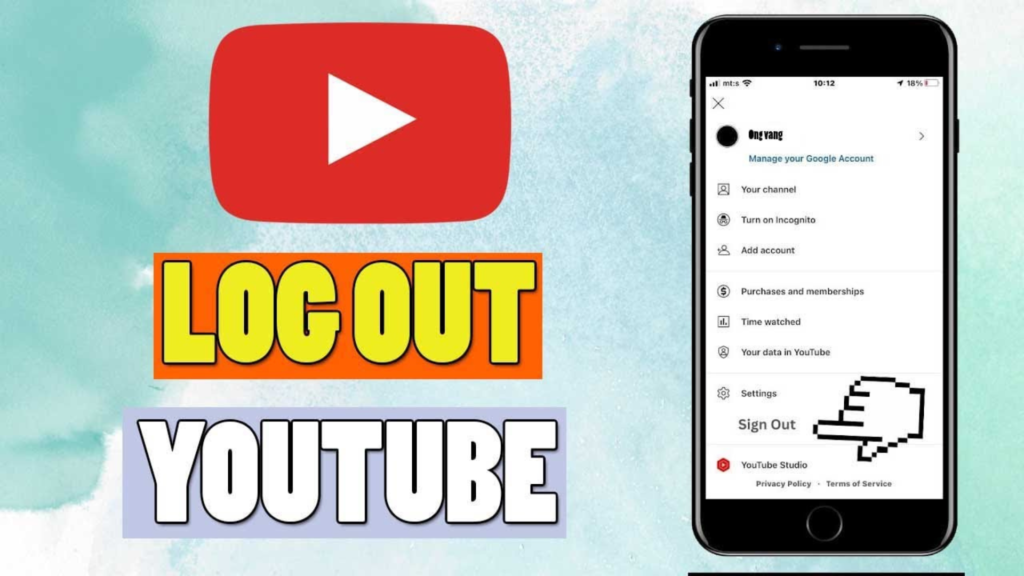
2. How to Sign Out of YouTube on iPhone and Android
The YouTube app handles accounts differently. Because your phone is a “personal” device, Google assumes you want to stay logged in.
- To Switch Accounts: Tap your profile picture > Switch account > Choose another profile.
- To Sign Out (iOS): Tap your profile picture > Your Name > Select “Use YouTube signed out.”
- To Sign Out (Android): This is trickier. You often have to go to your phone’s Settings > Accounts > Google and remove the account from the device entirely to “sign out” of the app.
Quick Comparison: Sign Out vs. Incognito vs. Switch
| Feature | Best For | Affects Watch History? | Signs out of Gmail? |
| Sign Out | Public/Shared PCs | No (History Paused) | Yes |
| Incognito | Temporary Privacy | No (History Deleted) | No |
| Switch Account | Family Sharing | Yes (Changes History) | No |
3. How to Sign Out of YouTube on a Smart TV or Console
If you’ve logged into YouTube at a friend’s house or a hotel on their Smart TV, Roku, or PlayStation, you definitely don’t want to leave your account active.
- Open the Menu: Navigate to the left-hand sidebar on the YouTube app.
- Select your Avatar: Move the cursor up to your profile picture at the top of the sidebar.
- Manage Accounts: Select your account and choose “Sign out.” 4. Guest Mode: If you just want to browse without an account, select “Guest Mode” from the account selection screen.
4. How to Sign Out Remotely (Lost or Stolen Devices)
If you forgot to sign out of a computer that you no longer have access to, don’t panic. You can force a sign-out remotely.
- Go to myaccount.google.com on any device.
- Navigate to the Security tab.
- Find the “Your devices” section and click “Manage all devices.”
- Select the device you want to log out of and click “Sign out.”
Conclusion
Knowing how to sign out of YouTube is a small but vital part of digital hygiene. For desktop users, it’s a simple click-and-confirm process, while mobile users may find “Incognito Mode” or “Switch Account” to be more convenient. Always remember that on shared hardware, the extra five seconds it takes to sign out is your best defense against someone messing with your algorithm—or your privacy.
Would you like me to show you how to set up two-factor authentication to keep your YouTube account even more secure?
FAQ Section
Q: Why can’t I find the “Sign Out” button on the mobile app?
A: Google intentionally hides the sign-out button on mobile to keep you synced. On Android, you usually have to remove the Google account from the phone’s system settings. On iPhone, tap your account name and select “Use YouTube signed out” at the bottom of the list.
Q: Does signing out delete my watch history?
A: No. Your watch history, subscriptions, and playlists are saved to your Google Account. They will all be there exactly as you left them the next time you sign back in.
Q: Can I sign out of YouTube but stay signed into Gmail?
A: On a desktop browser, this is generally not possible because they share the same Google session. However, on a mobile device, you can use “YouTube signed out” while your Gmail app remains active.
Q: What is the difference between signing out and Incognito Mode?
A: Signing out removes your account from the current session. Incognito Mode keeps you signed in but “pauses” your history and data collection for that specific window. Once you close an Incognito window, all searches and watched videos from that session are wiped.